cssbuy Mobile QC Image Viewing
cssbuy Mobile QC Image Viewing
cssbuy Mobile QC Image Viewing: Comparing with Google Sheets Image Path Lookup
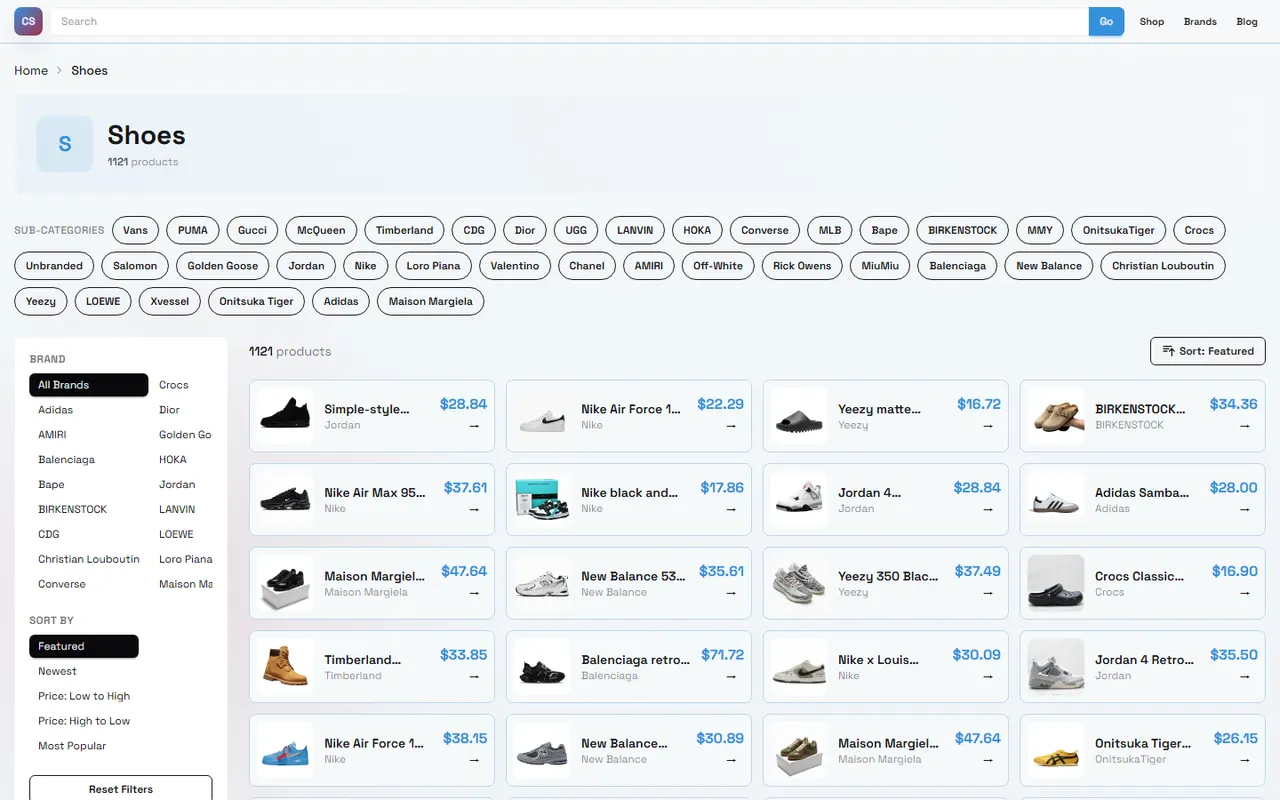
This article addresses a specific problem: when you're processing an order for trail running shoes through css-buy.org and need to zoom in and review QC images on your phone, should you use the website page to view them, or record the image paths into Google Sheets and open them from there?
After reading, you should be able to accomplish three things:
Locate the same batch of QC images on your mobile device.
Zoom in to examine the shoe upper, outsole, left/right shoe, and size markings.
Clearly record items that have been checked, items needing additional photos, and issues requiring contact with the seller.
This article only discusses image viewing and recording paths. It does not judge whether the shoes are authentic, nor does it replace the platform's order, after-sales, or return/exchange processes. The specific order status, number of images, visible fields, and operation entry points on css-buy.org should be based on what is displayed on the current page after login. 📱
First, Clarify the Task of Viewing Shoe QC Images on Mobile
Viewing QC images on mobile is not just about opening the images. Trail running shoes typically require examining the upper stitching, outsole tread pattern, left/right differences, shoe label, size tag, and any visible stains. Being able to zoom in on the images is only the first step; being able to return to the same batch of images and accurately record issues is equally important.
It is recommended to first confirm the following information:
Order number or internal identification name.
Product link or product title.
Which shoe the images belong to, and whether there are left/right or multiple angle photos.
Whether the current images are platform QC images, seller images, or reference images you saved yourself.
Whether the images have fully loaded, and whether there are any missing, blurry, or duplicate images.
If you have not yet entered the QC image page corresponding to the order, do not decide whether to accept the goods based solely on the product thumbnail. Thumbnails are suitable for locating items, but cannot replace detailed review.
What Information Can the cssbuy Website Spreadsheet Provide
On the actual pages of css-buy.org, the website-based spreadsheet is more suitable for centralized recording of products and image paths. It can help you correspond products, orders, or image groups by row, reducing the need to switch between multiple chat windows and browser tabs.
A row record should include at least:
Product name or your internal abbreviation.
Order identification information.
Description of the page or path where the QC images are located.
Current review status.
Angles that need to be re-examined.
Whether contact with the seller, warehouse, or customer service is needed.
The key here is to "record the path," not to mistake the spreadsheet for the images themselves. Whether the text, cell links, or image previews in the table can be opened normally on mobile depends on the actual file permissions, page structure, login status, and current service configuration. If a cell only displays text rather than an openable image entry, it cannot be considered as a completed QC review.
Differences Between Mobile Website Records and Google Sheets
Comparison Item | cssbuy Website Spreadsheet | Google Sheets Record |
|---|---|---|
Main Purpose | Associate platform products, orders, and QC paths | Record review results, issues, and follow-up actions |
Image Viewing | Depends on whether the page provides usable previews or entry points | Depends on whether images, files, or page paths in cells have permissions |
Zoom Method | Usually operated within the current page or image viewer | Can be viewed via image preview, opening original file, or browser page |
Return Navigation | Depends on platform page hierarchy and login status | Depends on switching between spreadsheet, browser tabs, and original image page |
Evidence Boundary | Can prove what the page displayed | Can prove what you recorded, but cannot automatically prove the image content is authentic or complete |
This comparison cannot replace checking the current page. If the platform page or table structure has changed, re-confirm the entry points according to the current interface. 🔎
How Google Sheets Records and Opens the Same Batch of QC Images
Google Sheets is more suitable as a review checklist rather than the sole image storage location. It is recommended that each row corresponds to only one product or one clearly defined image group, avoiding mixing paths of multiple shoes in the same cell.
You can use the following fields:
Product Identifier: e.g., internal name, order line, or SKU note.Image Group: Upper, outsole, left shoe, right shoe, shoe label, etc.Original Path: Keep the original location description of the platform page or file.Review Result: Pass, need additional photos, problem found, unable to open.Problem Description: Only write observable facts, e.g., "Suspected scratch on outer side of right shoe."Next Step: Continue viewing, request additional photos, contact seller, hold consolidation.Review Time: Record the date and time zone of this review.
When operating on mobile, you can follow this sequence:
Open the corresponding Google Sheets file.
Locate the product row, do not rely solely on similar names in search results.
Open the original path or image entry.
Wait for the image to fully load, then use two-finger zoom or browser zoom function.
After viewing, return to the spreadsheet and immediately record the result.
Mark items that cannot be opened, have insufficient permissions, or missing images, and do not fill in "checked."
If the image path contains temporary permissions, login restrictions, or expiration parameters, the path saved in the spreadsheet may become unusable. In that case, record "path invalid" or "need to reacquire," and do not treat the old path as long-term evidence. 📝
Comparing Zooming, Scrolling, Image Preview, and Return Navigation
The actual difference on mobile is often not in "whether you can zoom in," but in whether you can maintain the correct product context after zooming.
When viewing on the cssbuy website page, the advantage is that product, order, and QC images may be in the same workflow, making it relatively direct to locate the same order. The disadvantage is that the page may be affected by login status, mobile layout, image loading speed, or return hierarchy; if the page reloads after returning, you need to re-confirm which product you are currently viewing.
When viewing in Google Sheets, the advantage is that you can centrally record issues, review status, and follow-up actions. The disadvantage is that the spreadsheet is only an indexing and recording tool; the validity of the image entry still depends on the original path and access permissions. If a spreadsheet contains multiple products, especially after zooming in on an image, be sure to confirm that you do not jump to the wrong row when returning to the spreadsheet.
During actual review, it is recommended to adopt the rhythm of "confirm product before viewing images, record immediately after viewing":
First confirm the product name or order line.
Then open the image and zoom in on details.
Record content that can be directly observed in the image.
After returning, re-check the product identifier.
Finally, decide whether additional photos or contact with relevant parties is needed.
Do not infer the condition of the entire shoe just because you see one detail after zooming in. A single image can only support limited conclusions; when the angle is insufficient, mark it as "unable to confirm."
Checklist for Recording Differences in Upper, Outsole, and Left/Right Shoes
Upper
When checking the upper, focus on:
Whether the color, texture, and stitching of the left and right shoes are significantly different.
Whether the stitching has broken threads, skipped stitches, or obvious crookedness.
Whether the toe box, heel, and collar have indentations, stains, or deformation.
Whether mesh, leather, or synthetic material areas have damage.
Whether laces, eyelets, and decorative parts are complete.
When recording, use observable descriptions, e.g., "Dark spots near the toe area of the left shoe," do not directly write "quality must be problematic."
Outsole
When checking the outsole, focus on:
Whether the tread patterns of the left and right shoes are consistent.
Whether the edges of the outsole have obvious excess glue or notches.
Whether the outsole has unexpected stains, wear marks, or cracks.
Whether the tread pattern is obstructed, preventing a clear judgment.
Whether the images clearly show the forefoot, heel, and outer edges.
If the outsole only has a front-facing photo without side or heel angles, record the missing angles instead of assuming there are no problems.
Left/Right Differences
Comparing left and right shoes is best done with same-angle images. It is recommended to check:
Whether the toe shape is consistent.
Whether the upper height and collar shape are significantly different.
Whether the logo position, color, and font have visible differences.
Whether the outsole pattern and edges are asymmetrical.
Whether one shoe is missing corresponding images.
If the shooting angles of the two shoes are different, the differences may come from perspective or placement. In that case, request same-angle additional photos, and do not draw conclusions based solely on photo angles.
Evidence Boundary of Website Pages and Spreadsheet Links
Website pages and Google Sheets each can only prove a part of the facts:
Website pages can display currently visible product, order, or QC information, but page content may change with login status and time.
Spreadsheets can save your paths, judgments, and time records, but cannot automatically prove that the original images have always existed.
Images can support descriptions of visible appearance, but cannot alone prove material, durability, authenticity, or actual wearing experience.
Paths that cannot be opened only indicate that this access was not completed, and cannot indicate whether the image content is qualified or unqualified.
Therefore, records should distinguish "seen," "not seen," and "need supplementary evidence." For example:
Seen: There is a clear dark mark on the outer side of the right shoe outsole.
Not seen: Shoe box label, current images do not provide that angle.
Need supplementary evidence: Cannot confirm whether there is damage on the inner side of the upper.
The purchasing, warehousing, QC, consolidation, and subsequent shipping processes on css-buy.org should be based on the current platform pages and applicable policies. This article does not provide advice on evading inspection, under-declaring, or splitting orders to avoid taxes; when it comes to customs clearance, taxes, and import restrictions, you should handle it truthfully according to the destination country's requirements. ⚖️
Common Omissions When Viewing on Mobile and Supplementary Recording Methods
Only Looking at the First Image
The first image is often used to locate the product and may not cover the outsole, shoe label, and left/right shoe. First confirm whether the image group has other angles before starting to judge.
Forgetting Product Context After Zooming
Mobile browsers or spreadsheet previews may open new pages. After returning, re-check the order identifier to avoid writing the results of the previous shoe into the next row.
Treating Blurry as No Problem
Blurry images are not equal to clean images. For areas that cannot be confirmed, record "need clear additional photos" and specify the exact area and shooting angle.
Recording Only Conclusions Without Basis
"Pass" or "Fail" is not clear enough. At least supplement the observation location, image angle, and review time for future reference.
Path Opens but Images Are Not the Same Batch
If the path jumps to the product homepage, general album, or another order page, mark it as path mismatch, and do not mistake page accessibility for valid image evidence.
Next Actions After Completing Shoe QC Image Review
After completing the review, you can categorize the results into three types:
No issues requiring further confirmation: Save the review time and image group scope, then decide according to the current platform process whether to continue warehousing, consolidation, or shipping.
Suspicious appearance problems found: Keep image paths, screenshots, or page records, and contact relevant parties without disclosing order, payment card, passport, and complete shipping label.
Insufficient images or invalid paths: First request missing angles or reacquire accessible paths, then decide whether to proceed.
Consolidation is not always cheaper. It may reduce repeated first weight or some operational costs, but may also increase volumetric weight, single package value, and concentrated loss risk; splitting packages may increase fixed costs, but sometimes is more suitable for route restrictions or risk diversification. The specific decision should be calculated based on package weight, volume, destination country requirements, route restrictions, and current fee details.
For those who are suitable to use this recording method, the benefit is reducing the time spent repeatedly searching for images on mobile and lowering the probability of mixing up records of different products. The cost is needing to maintain a spreadsheet, check path validity, and wait for supplementary evidence when images are missing. Unsuitable situations include: you only have a thumbnail that cannot be zoomed, no verifiable product identifier, paths that require another person's account to access, or current decisions involving compliance issues beyond platform policies.
Finally, confirm the following items before continuing:
Each product has a clear image group and order identification information.
The upper, outsole, and left/right shoe have all been viewed, or missing angles have been explicitly recorded.
All conclusions are based on visible evidence, and no speculation is written as fact.
The status in Google Sheets is consistent with the actual review results.
Items requiring additional photos, seller contact, or holding subsequent actions have been separately marked.
This way, mobile QC image review truly forms a traceable inspection record, rather than just a one-time zooming operation.
Browse our latest products and find your next favorite item.